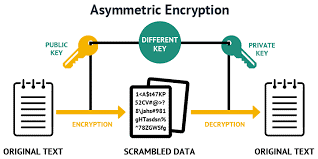
To send messages/data securely over the web, an asymmetric encryption , which consists of two basic elements:
- Public key (padlock)
- Private key (key)
Each key is a unique code of numbers and letters. The public key must be given to the server you wish to connect to, while the private key must remain on your computer. This ensures that information is transmitted securely between the server and your computer.
In the HPC CEDIA cluster, we use these certificates within the SSH (Secure Shell) protocol to establish secure communication between each user's computer and our cluster, completely eliminating the use of an SSH connection key, thus improving access security.
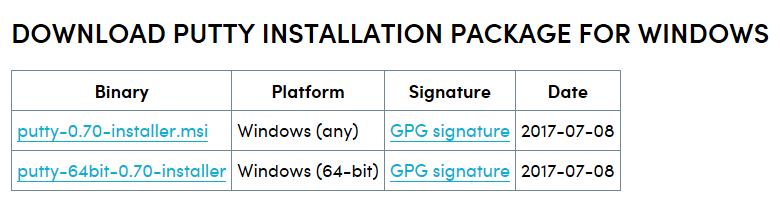
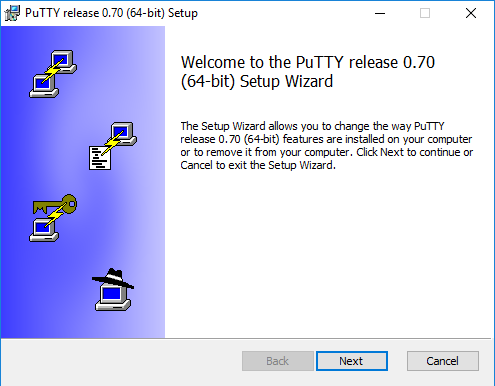
- Download the PuTTY package from https://www.ssh.com/ssh/putty/download

- Follow the instructions and install the program on your computer.
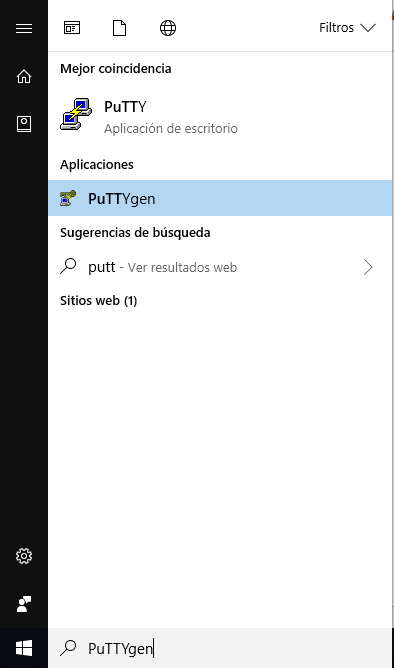
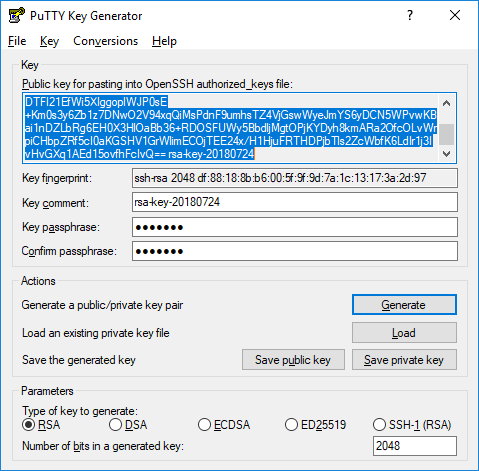
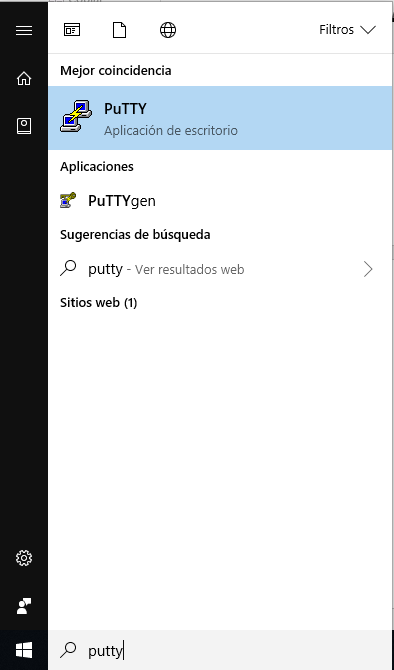
- After installation, search for the program called “PuTTYgen” and run it.
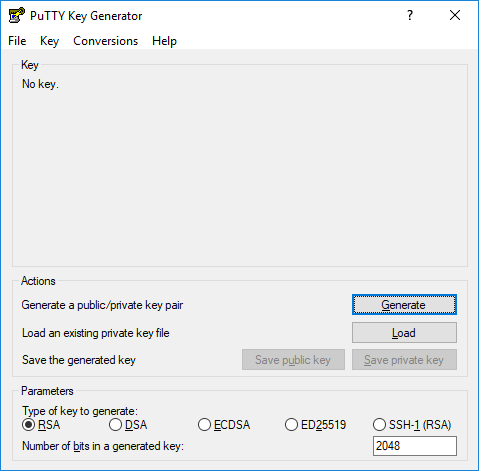
- Verify that the “RSA” option is enabled with 2048 bits generated. If everything is configured correctly, click “Generate”.
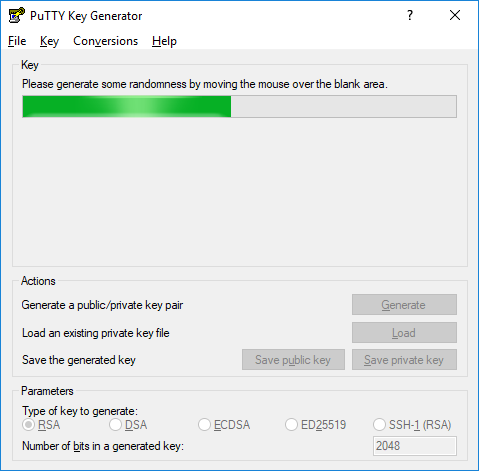
- Move the mouse randomly over the required area to generate a random code.
- Optionally, enter a password in the "passphrase" field if you wish. This will provide extra security for your SSH certificates.
- Save your private key (.ppk) on the computer you will be connecting from. Remember not to share this file with anyone.
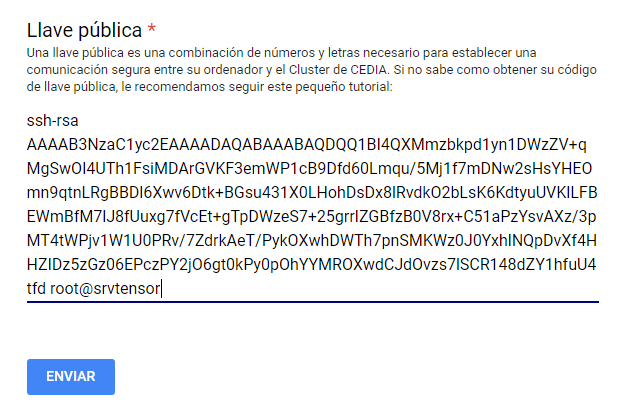
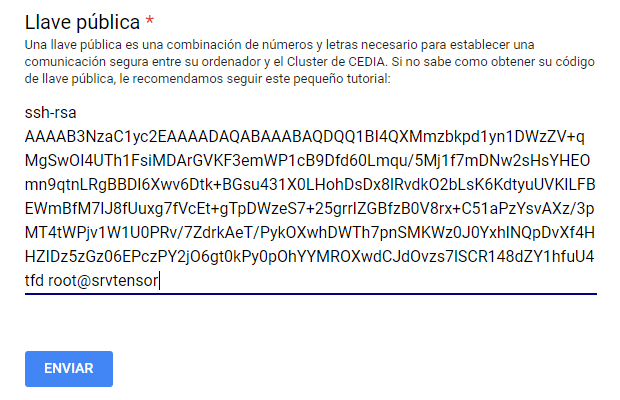
- Send the public key (all content) to the contact at CEDIA for the creation of the account within the Cluster.
- To connect to the cluster, search for the program “PuTTY” and run it.
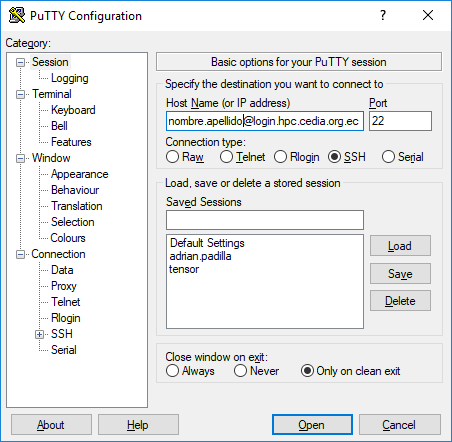
- In the “Host Name (or IP address) firstname.lastname@login.hpc.cedia.org.eccedia” field enter your information as follows:
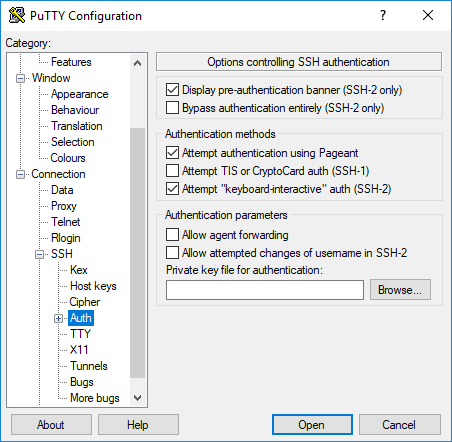
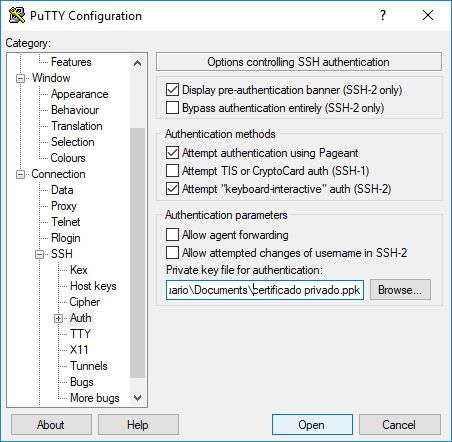
- In the left side panel go to SSH / Auth and in the “Private key file authentication” field enter your private SSH certificate (.ppk).
- Click the “Open” button.
- You are now connected. A terminal will open from which you can interact directly with the cluster. Remember to repeat from step 9 each time you want to reconnect.
If you have any questions noc@cedia.org.eccediaus please write to at: .
- Open terminal: Ctrl + Alt + T
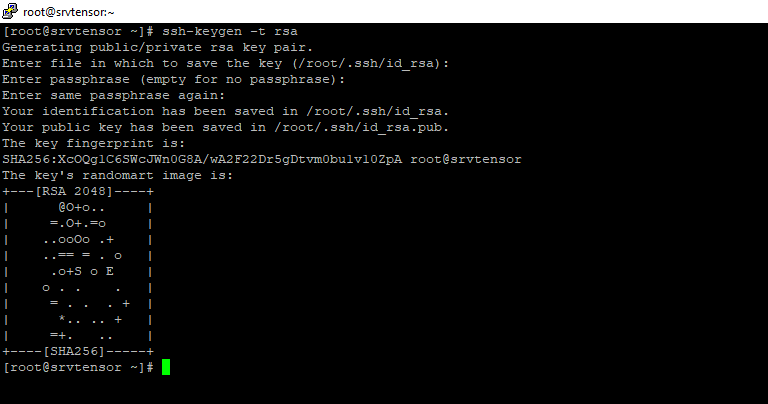
- Enter the following command: ssh-keygen -t rsa
- If you wish, change the location where you will save the file containing the private key. Optionally, you can add a password to further secure your SSH certificates.
- Your SSH certificates have been created.
- Enter the following command: cat /root/.ssh/id_rsa.pub
- Send the public key (all content) to your contact at CEDIA for the creation of the account in the CEDIAcluster.
- In the terminal, enter the following command name.surname@login.hpc.cedia.org.eccediassh
- You are now connected to our cluster. To manage the cluster from the terminal, please refer to our manual, "How to work on an HPC CEDIAnode?"
- Remember that your private key is located at the same address you selected in step 3.